A better-connected desk.

Two worlds.
One switch.

Work laptop. Personal computer. One place for both.
Find the KVM setup that brings your desk together.

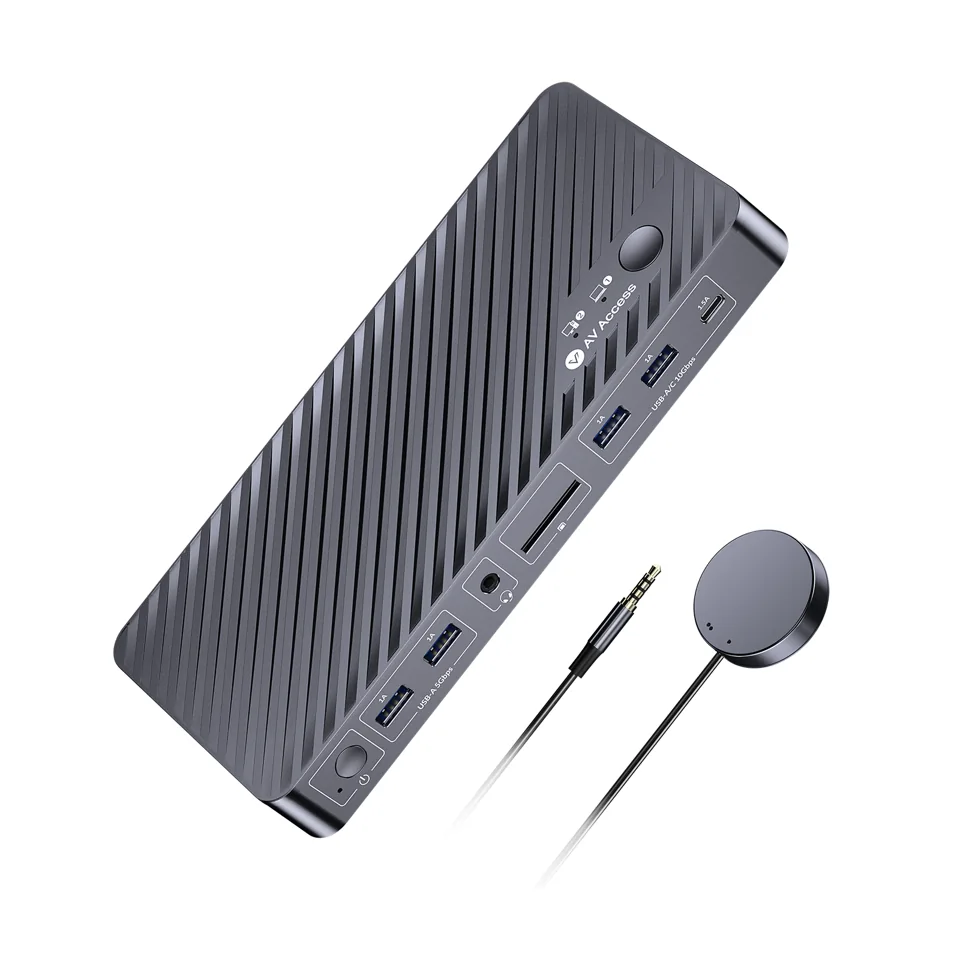
Angled view of an AV Access iDock B12 and its wired switch button
In the spotlight
AV Access iDock B12

The art of switching.

Change your focus.
Keep your flow.

WorkPersonal
Work laptop
Personal PC
Time to focus.Your work computer. Your familiar desk.
kvm

Illustrative connection concept. Your hardware determines the exact setup.

A KVM can share the screens and peripherals you already use. The right choice starts with the connections on each computer.

Understand the difference

Choose the setup. Then the price.

From a shared screen
to your command center.

Spend on the connections you need. Explore 11 models, from simple HDMI switching to specialist Thunderbolt and multi-computer setups.

11 models
AV AccessEssentials

4KSW21-KVM

A simple shared screen.

2 computers / 1 screenHDMI 2.04K at 60 Hz
$54.99USD

Out of stock

What the price buys

You pay for a narrow, defined scope: two computers sharing one HDMI 2.0 screen at 4K 60 Hz, with USB 2.0 peripherals.

Is it worth it for my desk?
Check before buying

USB 2.0 peripherals only. Separate HDMI and USB connections from each computer.

Check current manufacturer price
AV AccessEssentials

4KSW21-DM

Two screens, without a dock.

2 computers / 2 screensHDMI 2.0Dual 4K at 60 Hz
$119.99USD

Check availability

What the price buys

You pay for a second screen: two computers sharing two HDMI 2.0 screens at 4K 60 Hz each, with no dock in between.

Is it worth it for my desk?
Check before buying

Each computer needs two video outputs. HDMI cables are sold separately on this listing.

Check current manufacturer price
AV AccessEveryday work

KD-E10

Your laptop meets your desktop.

2 computers / 2 screensUSB-C + HDMI / DPDual 4K at 60 Hz
$152.99USD

Check availability

What the price buys

You pay for a laptop-plus-desktop setup that combines USB-C with HDMI or DisplayPort connections and feeds two screens at 4K 60 Hz.

Is it worth it for my desk?
Check before buying

macOS mirrors the two external screens over USB-C MST. Laptop charging needs a suitable separate power adapter.

Check current manufacturer price
AV AccessEnthusiast

8KSW21-KVM

One screen. Higher refresh.

2 computers / 1 screenHDMI 2.14K at 120 Hz
$159.99USD

Check availability

What the price buys

You pay for HDMI 2.1 and 4K at 120 Hz on one shared screen, which matters when a smoother refresh rate is part of what you want.

Is it worth it for my desk?
Check before buying

Confirm the exact display mode and cables. Manufacturer limits EDID emulation to 4K at 60 Hz and below.

Check current manufacturer price
TESmartEveryday work

HKS202-E23

A dedicated dual-screen desk.

2 computers / 2 screensHDMIDual 4K at 60 Hz
$199.99USD

Check availability

What the price buys

You pay for a dedicated dual-screen HDMI desk: two computers, two screens at 4K 60 Hz, two HDMI outputs from each computer, and USB 2.0 peripherals.

Is it worth it for my desk?
Check before buying

Two HDMI outputs per computer are required. Shared peripherals use USB 2.0.

Check current manufacturer price
AV AccessEveryday work

iDock C20

Two laptops, one workspace.

2 computers / 2 screensTwo USB-C hostsDual 4K at 60 Hz
From $233.99USD

Check availability

What the price buys

You pay for a dock and a KVM switch in one device: two USB-C hosts sharing two screens at 4K 60 Hz, suited to a desk built around two laptops.

Is it worth it for my desk?
Check before buying

macOS duplicates the two external displays over MST. Price is for the base iDock C20 option, not the remote bundle.

Check current manufacturer price
AV AccessEnthusiast

iDock B12

Work laptop. Gaming desktop.

2 computers / 2 screensUSB-C + desktop videoDesktop: up to 4K at 165 Hz
$299.99USD

Pre-order shown

What the price buys

You pay for a split design: a desktop video path up to 4K 165 Hz for gaming, plus a USB-C path for a work laptop.

Is it worth it for my desk?
Check before buying

Laptop path has different limits: Windows dual 4K at 60 Hz; macOS mirrors dual displays. No EDID emulation.

Check current manufacturer price
TESmartBrand best-seller

DKS202-M24

A high-refresh dual-screen setup.

2 computers / 2 screensDisplayPort 1.4Dual 4K at 144 Hz
$329.90USD

Check availability

What the price buys

You pay for DisplayPort 1.4 on two screens at up to 4K 144 Hz, aimed at a high-refresh dual-monitor desk shared by two PCs.

Is it worth it for my desk?
Check before buying

Two DisplayPort outputs per PC. Maximum modes depend on DSC, graphics hardware, monitors and cables.

Check current manufacturer price
TESmartBrand best-seller

DKS403-M24

Four computers. Three displays.

4 computers / 3 screensDisplayPort 1.4Triple 4K at 144 Hz
$539.00USD

Check availability

What the price buys

You pay for scale: four computers sharing three displays over DisplayPort 1.4, with up to 4K 144 Hz on each screen.

Is it worth it for my desk?
Check before buying

Each computer must drive three displays through separate DisplayPort outputs. Check every device and cable.

Check current manufacturer price
TESmartProfessional

HDC202-X24

A Thunderbolt hybrid workstation.

2 computers / 2 screensThunderbolt 4 compatibleDual 4K at 60 Hz
$699.00USD

Check availability

What the price buys

You pay for a Thunderbolt 4 compatible hybrid: a Thunderbolt laptop and an HDMI or DisplayPort desktop sharing two screens at 4K 60 Hz.

Is it worth it for my desk?
Check before buying

For a Thunderbolt laptop and an HDMI/DisplayPort desktop. Check the host’s external-display limit and the full connection diagram.

Check current manufacturer price
TESmartBrand best-seller

TKS202-X4

A specialist Studio Display setup.

2 computers / 2 screensThunderbolt 4 compatibleTwo Apple Studio Displays
$799.00USD

US variant sold out

What the price buys

You pay for a specialist pairing: two compatible Thunderbolt hosts sharing two Apple Studio Displays, a narrow setup with specific host and display requirements.

Is it worth it for my desk?
Check before buying

Designed for compatible Thunderbolt hosts and Apple Studio Displays. Exact display generation and host support must be checked.

Check current manufacturer price

US manufacturer prices checked November 10, 2026. Listed configuration or starting price; promotions, taxes, shipping and availability may change. Confirm the total with the seller.

Specifications are manufacturer claims, not our test results. “Brand best-seller” means included in TESmart’s Best Sellers collection, not a verified sales ranking.

Start with what you have.

Your desk.
Your connections.
Your way.

Mac or PC. One screen or three. Tell us what you want to connect, and get a practical plan for the checks that matter.

No signup. Your answers stay in your browser.

Complete your setup.

The right extras.
Only when you need them.

Cables, laptop power and room for your screens. Check what is already in the box before adding anything.

Complete your setup

A little clarity goes a long way.

Before you plug in.

Explore the guides

A clearer connection.

Two computers. Everyday questions.

How can I use two computers with one monitor?

Use a KVM switch, short for keyboard, video, mouse. It connects two computers to one screen and one set of peripherals, and you switch between them. The AV Access 4KSW21-KVM, for example, runs one screen at 4K 60 Hz over HDMI 2.0, with separate HDMI and USB connections from each computer and USB 2.0 peripherals.

Sources: avaccess.com
Can my work laptop and personal desktop share one keyboard, mouse and set of screens?

Yes, that is what a KVM switch does: two or more computers take turns using the same keyboard, mouse and monitors. A dock only expands one computer. Laptop-and-desktop models such as the AV Access KD-E10 combine a USB-C connection with HDMI or DisplayPort, and laptop charging needs a separate suitable power adapter.

Sources: avaccess.com
How many screens can a KVM switch handle?

It depends on the switch and on each computer. The models listed here run from one screen to three. The TESmart DKS403-M24, for example, serves four computers and three displays. Each computer also has to support that many external displays at your resolution and refresh rate, and Apple notes the limit varies by Mac model.

Do I need a docking station or a KVM switch?

Choose by how many computers use the desk. A docking station adds monitors, Ethernet, USB devices and often charging to one computer. A KVM switch lets two or more computers share the same keyboard, mouse and monitors. Some devices, such as the AV Access iDock C20, combine both roles, so read that exact model's documentation.

Will a Mac show two different screens through a KVM switch?

Not always. On the AV Access KD-E10 and iDock C20, macOS shows the same image on both external displays when it uses a single USB-C connection with MST. TESmart's HDC202-P23 documentation has a Mac use two video-capable USB-C cables instead. Either way, check that your exact Mac supports two external displays at your settings.

What is the difference between a cheap and an expensive KVM switch?

In this catalogue, the documented differences include the number of connections and supported video modes. Entry models such as the AV Access 4KSW21-KVM share one HDMI screen at 4K 60 Hz with USB 2.0 peripherals. Higher-priced models add more computers, more screens or a higher refresh rate (the TESmart DKS403-M24 is one example), or support Thunderbolt hosts. A higher price does not guarantee a better fit for you.

What is good value for ordinary office work?

If you run one or two screens at 4K 60 Hz, a simpler switch can be enough. The AV Access 4KSW21-DM covers two computers and two screens over HDMI 2.0, as long as each computer has two video outputs. HDMI cables are sold separately on that listing. High refresh or Thunderbolt only adds value if you use them.

Sources: avaccess.com
Do I need an expensive professional KVM switch?

Only if your setup calls for one. The highest-priced models here target specialist setups. The TESmart TKS202-X4 handles two Apple Studio Displays, and the HDC202-X24 pairs a Thunderbolt laptop with an HDMI or DisplayPort desktop. Anyone can buy them, but if you do not need those specific connections, a simpler model may cover your desk.

Your setup, decoded.

Your shortlist.

See what changes.

Swipe horizontally on small screens.

US price snapshot: November 10, 2026. Final prices and availability belong to the seller. Feature-based guidance, not a hands-on verdict.